
Write a letter in Word, list the people it goes to in Excel, and daisywriter types a copy for each of them on your typewriter, with their name, address and anything else filled in. It shows each letter exactly as it will be typed, and remembers which ones are done.
Download
This early version isn't signed yet, so installing it takes a couple of extra clicks:
- Windows:
- The web browser may warn that the file “isn't commonly downloaded”. To keep it in Microsoft Edge, point at the file in the downloads list, click …, then Keep (and if asked, Show more, then Keep anyway). In Chrome, click Keep.
- Open the downloaded file to install daisywriter.
- If Windows says “Windows protected your PC”, click More info, then Run anyway.
- Mac (Apple silicon: M1 or later): open the downloaded file and drag daisywriter onto Applications. The first time, macOS won't open it: open System Settings > Privacy & Security, scroll down, and click Open Anyway.
Sample letters: a letter and a list of five people, to try daisywriter before making your own.
Version 0.1.4, an early test version. What's new.
How it works
Hollis Typewriter Repair 19 Platen Lane Ames, Iowa 12345
{{FirstName}} {{LastName}} {{Company}} {{Address1}} {{Address2}} {{City}}, {{State}} {{Zip}}
RE: Your order {{OrderNumber}}
Dear {{FirstName}},
Thank you for ordering the {{Product}} on {{OrderDate}}. We are pleased to tell you that the machine has been inspected, cleaned, and adjusted in our shop, and that it left here today by parcel post.
| FirstName | LastName | Company | City | Product | Amount | … |
|---|---|---|---|---|---|---|
| Eleanor | Whitfield | Whitfield & Daughters Stationery | Springfield | Smith-Corona Galaxie 12 | $89.50 | |
| Thomas | O'Brien | Gloucester | Olympia SM9 | $125.00 | ||
| José | Álvarez | Álvarez Translation Services | Santa Fe | Hermes 3000 | $148.75 |
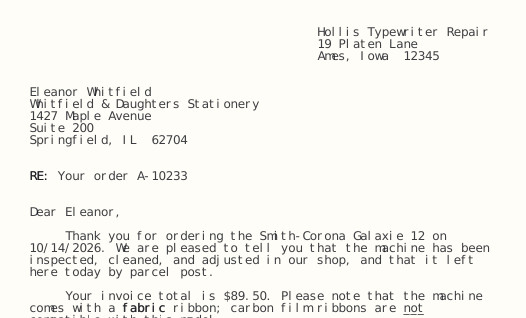
These are the sample letters, so you can try them yourself.
What you need
- A Swintec 1146 CMP or Olympia Electronic Compact 2 typewriter.
- A USB-to-parallel printer cable (with a Prolific PL2305 chip) to connect it. There's nothing else to install, and no printer to set up.
- Word and Excel, or another program that saves .docx and .xlsx files.
User guide
The same guide is in daisywriter under Help > daisywriter User Guide.
daisywriter types letters on an electronic typewriter. You write the letter once in Word, list the people it goes to in Excel, and daisywriter types one letter per person, filling in their name, address and anything else from the spreadsheet.
It works with the Swintec 1146 CMP and the Olympia Electronic Compact 2, connected to the computer with a USB-to-parallel cable.
1. Install daisywriter
Windows
- Download the installer,
daisywriter-…-windows-x64.msi. This alpha version isn't signed yet, so the web browser may warn that it "isn't commonly downloaded". To keep it: - Microsoft Edge: in the downloads list, point at the file, click …, then Keep. If Edge asks again, click Show more, then Keep anyway.
- Google Chrome: click Keep (or Download suspicious file) in the downloads list.
- Open the downloaded file to run the installer.
- Windows may say "Windows protected your PC", for the same reason. Click More info, then Run anyway.
- When Windows asks whether to allow changes, click Yes.
- daisywriter is now in the Start menu.
To remove it later: Settings > Apps > Installed apps > daisywriter > Uninstall.
Mac
- Open the
.dmgand drag daisywriter onto Applications. - The first time, macOS won't open it, because this alpha version isn't signed yet. Open System Settings > Privacy & Security, scroll down, and click Open Anyway next to daisywriter.
Sample letters: to try daisywriter before making your own letter, choose
Help > Open Sample Letters. It opens a letter in Word and a list of five
people in Excel to print it for, and puts them in a daisywriter samples
folder in your Documents. (They're also on the download page, as
daisywriter-…-samples.zip.)
2. Set up the typewriter
- Plug the USB cable into the computer and the parallel end into the typewriter. Windows sets it up by itself the first time ("USB Printing Support"); there's nothing to install and no printer to add.
- Set the typewriter's pitch switch to 10 and its line spacing to single.
- Turn the typewriter off and on again. This puts the margins back where daisywriter expects them. Don't change the margins.
- Press ON LINE so its light comes on.
- In daisywriter, click Check typewriter (bottom left). A green dot and "ready" mean everything is connected.
3. Write the letter in Word
Write the letter as you normally would. Where something should change from person to person, put the name of a column from your spreadsheet:
- either type it in double braces:
Dear {{FirstName}}, - or use Word's own merge fields (Mailings > Insert Merge Field).
Some extras:
| Type this | To get |
|---|---|
{{Today}} |
today's date, like November 11, 2026 |
{{LastName:upper}} |
the value in capitals (also :lower, :caps for Each Word Capitalised) |
{{OrderDate:MMMM d, yyyy}} |
a date in your own format (MM/dd/yyyy, d MMMM yyyy, …) |
{{Amount:$#,##0.00}} |
a number in your own format |
Without a format, values appear as they're shown in Excel.
What the typewriter can do: bold, underline, strikethrough, centred, right-aligned and justified text, indents, tabs, and line breaks (Shift+Enter). daisywriter re-wraps every paragraph to the typewriter's margins, so it doesn't matter where Word breaks the lines.
What it can't: fonts, sizes and colours are ignored, and italic is typed as plain text. Headers and footers are skipped (use pre-printed letterhead). Tables and pictures can't be typed: daisywriter will point them out.
Paper size and margins come from Word. Set them in the template with Layout > Size (for an unusual size, More Paper Sizes…) and Layout > Margins, and save. daisywriter shows what it found on the Paper line at the top of its window. A few limits come from the typewriter:
- The text can't reach further than 7½ inches from the paper's left edge. For letter paper, that's a right margin of at least 1 inch.
- The top margin is at least ⅔ inch: that's where the typewriter holds a sheet it has just pulled in.
- For a left margin under 1 inch, daisywriter asks you to put each sheet a little to the right of the paper guide (or of 10 on the scale), and says how far.
If a margin can't be used as set, daisywriter says so in the box at the bottom and uses the nearest one it can. Writing the template in Courier New, 12 pt, makes the page in Word look much like the typed one.
4. Make the list in Excel
- The first row holds the column names, the ones you use in the letter.
- Each row after that is one letter.
- If a cell is empty and it's alone on its line (like a second address line), that line is left out of the letter.
5. Print
- Start daisywriter. Choose the Template (your Word file) and the Data (your Excel file). If the workbook has several sheets, pick one under Sheet.
- The list on the left shows one row per letter. Click a letter to see it on the right exactly as it will be typed: the margins are the dashed lines.
- The box at the bottom lists anything to check:
- error (red): must be fixed before that letter can print
- warning (orange): worth a look, for example a character the typewriter doesn't have, typed as the nearest one it does
- info: just so you know
Click a line to see its letter. If you fix something in Word or Excel and save, daisywriter notices and reloads. 4. Tick the letters to print. The box at the top of the list ticks or unticks them all. Check not printed ticks only the ones still to do. 5. Click Print checked letters. 6. For each page, daisywriter asks for paper. Put a sheet in, against the paper guide on the left (if the guide is missing or broken, line the sheet's left edge up with 10 on the scale), just until the rollers above the typing point catch it, then click Continue. daisywriter moves it down to the top margin, types the page, and feeds it out when it's done. 7. To stop, click Stop. The typewriter finishes the line it's typing, then stops. Take the sheet out: the letter is marked failed, so print it again on a fresh sheet.
daisywriter remembers which letters were printed, even after you close it, so
you can carry on later. It keeps this in a small file next to your Excel file
(….daisywriter.json). If a letter is printed again, it asks first.
Try it without paper: choose Print on the emulator (PDF) next to the Print button. daisywriter "types" the letters into a PDF instead, so you can check them first.
6. Typing errors (optional)
To make letters look typed by hand, tick Typing errors. daisywriter adds the odd mistake to the body of the letter and corrects it the way a typist would: by typing x's over the wrong letters and typing the word again, or by typing the right letter over the wrong one. Names and other values from the spreadsheet are never misspelled.
- The number sets how many: about that many per 100 words.
- The same letter gets the same mistakes each time, so the printout matches the preview. Click New errors for different ones.
- daisywriter finds the body between the greeting ("Dear …,") and the closing
("Sincerely," and the like). If your letter is different, put
{{body}}on its own line before the body and{{/body}}after it.
7. If something goes wrong
| What you see | What to do |
|---|---|
| adapter … not found | Check that the USB cable is plugged in at both ends. |
| the adapter stopped responding | The USB cable came out while typing. Plug it back in, then print that letter again. |
| the typewriter is off-line | Press ON LINE so its light comes on. |
| PE (paper empty) is high | The parallel cable is loose: push it in at the typewriter. |
| the typewriter stopped taking data | It went off-line or lost power while typing. Fix that, then print that letter again. |
| Text wraps in odd places, or runs into the margin | Turn the typewriter off and on to reset the margins, and check the pitch switch is on 10. |
| The sheet stays in the rollers at the end | Turn the platen knob to take it out. |
The letter being typed when something went wrong is marked failed in the list; print it again on a fresh sheet.
About
daisywriter is a hobby project by Jacob Nelson, made to put electronic daisywheel typewriters back to work. It's open source under the MIT license: free to use, change and share, with no warranty.
The source code is on GitHub, where you can also report a problem or suggest something.